Nginx Settings
The Nginx tab in Application Settings controls how Appliku configures Nginx for your application. This includes deployment behavior, domain access rules, and the ability to provide a fully custom Nginx configuration.
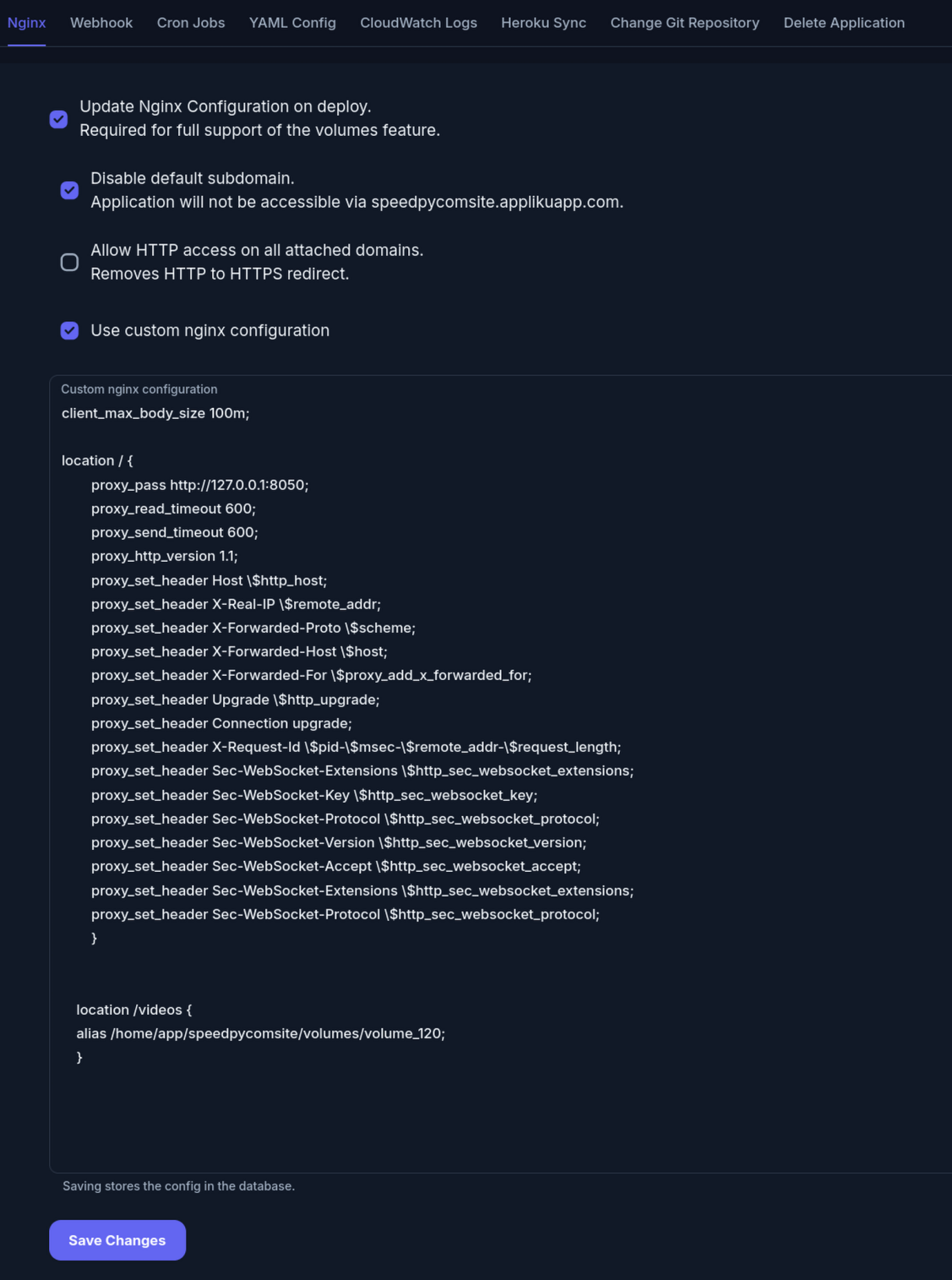
Options
Update Nginx Configuration on Deploy
When enabled (the default), Appliku regenerates the Nginx configuration on every deployment. This keeps the config in sync with your application's current domain and process settings.
Disable this option if you are managing a custom Nginx configuration that should not be overwritten on each deploy. Note that when disabled, changes you make to domains or volumes in the dashboard will not be automatically reflected in the Nginx config — you will need to update it manually.
Disable Default Subdomain
By default, Appliku assigns each application a subdomain on your server's base domain (e.g., myapp.myserver.applikuapp.com). Enable this option to disable that default subdomain and serve the application only on explicitly attached custom domains.
Allow HTTP Access on All Attached Domains
By default, Appliku redirects HTTP traffic to HTTPS. Enable this option to allow plain HTTP access on all domains attached to the application. This is useful for applications that handle their own HTTP-to-HTTPS logic, or for internal services that do not require TLS.
HTTP Protocol
Selects the HTTP protocol Nginx advertises to clients at the edge. Available options:
- HTTP/1.1 (default): no change in behavior. All vhosts speak HTTP/1.1 to clients.
- HTTP/2: Nginx negotiates HTTP/2 with clients that support it, falling back to HTTP/1.1 otherwise. Browsers will use HTTP/2 automatically over ALPN; no client-side configuration is needed.
The selector is only available for applications whose vhost is served by dockerized Nginx, which means:
- Cluster applications.
- Standalone server applications whose server has dockerized Nginx enabled.
For applications running on a server with host (system) Nginx, an info notice appears in place of the selector. To enable the option, switch the server to dockerized Nginx in the server settings.
HTTP/2 is an edge-only setting. Traffic between Nginx and your application container always uses HTTP/1.1, regardless of the option you select here, so no application-side changes are required.
Changes take effect on the next deployment.
Use Custom Nginx Configuration
Enables the custom Nginx configuration editor. When you first enable this option, the editor is pre-populated with the full Nginx configuration that Appliku currently generates for your application — including proxy pass settings, volume mounts, and domain configuration.
You can then modify the configuration to suit your needs. The edited configuration is saved to the database and applied on the next deployment.
Once you enable Use Custom Nginx Configuration, new volumes you add to the application will not be automatically reflected in the Nginx config. You must update the configuration manually whenever you add or change volumes.
Custom Nginx Configuration Editor
When Use Custom Nginx Configuration is enabled, a code editor appears with your application's current generated Nginx configuration.
The configuration is divided into two kinds of sections:
- Managed sections — marked with comments indicating they are auto-generated. These provide the baseline proxy pass, upstream definitions, and SSL handling.
- Editable area — the section between the managed blocks where you can add your own directives.
Common Customizations
Increase upload size limit:
client_max_body_size 100M;
Increase proxy timeouts (for long-running requests):
proxy_read_timeout 300s;
proxy_connect_timeout 300s;
proxy_send_timeout 300s;
Add custom headers:
add_header X-Frame-Options "SAMEORIGIN" always;
add_header X-Content-Type-Options "nosniff" always;
Enable gzip compression:
gzip on;
gzip_types text/plain text/css application/json application/javascript;
gzip_min_length 1000;
After editing, click Save. The configuration is stored in the database and will be applied on the next deployment.
Reverting to the Auto-Generated Configuration
To go back to the fully managed Nginx configuration:
- Disable Use Custom Nginx Configuration
- Re-enable Update Nginx Configuration on Deploy (if you had disabled it)
- Trigger a new deployment
Appliku will regenerate the Nginx configuration from scratch based on your current application settings.
Related
- Custom Nginx Configuration how-to — detailed examples and use cases
- Build Settings
- Persistent Volumes
- Custom Domains & SSL