Cron Jobs (Scheduled Tasks)
Cron jobs allow you to schedule tasks to run automatically at specified intervals.
What Are Cron Jobs Used For?
Common use cases include:
- Send recurring emails
- Update data from external sources
- Generate reports
- Run cleanup tasks
- Trigger periodic data processing
Cron Jobs of Cluster Applications
Cron jobs are available for applications in a cluster. They work like this:
- The cluster primary starts each run from its crontab. The run is a new Swarm service with the image, the environment variables, the networks and the placement of the application's
one_offservice, so it runs on a worker node when the cluster places processes there. It can reach the private databases of the cluster. - One run at a time. If the previous run of the same job still runs, the new run is skipped.
- Time limit. A run that is still running at its time limit is stopped.
- Delete stops the run. When you delete a job, or move the application, a run that is running is stopped.
- Disable lets the run finish. When you disable a job, no new run starts. A run that is running continues to its end (or to its time limit).
- The application must be deployed: a run uses the image of the last deployment. A change of an environment variable is used after the next deployment, like for processes.
- The output of each run is in its own run log on the cluster primary, and the cron log of the job has a
RESULTline and anAPPLIKU_CRON_EXIT <code>line (see Viewing Cron Job Logs). Each run is reported to Appliku (see Run Reports). - Appliku does not guarantee exactly one run: after a primary change or a network problem, a run can repeat. Make your commands safe to run again.
- The run history, the last result, the red triangle and "View log" work as for a standalone server (see Run History and State).
Cron jobs that you added before cluster cron jobs were available
Before cluster cron jobs were available, the cron jobs of a cluster application did not run. Appliku set these jobs to disabled. To run a job, enable it on the Cron Jobs tab.
Cron jobs of static sites on a cluster never run. You can save them only as disabled.
If Appliku pauses cron jobs of cluster applications on the platform, the Cron Jobs tab shows the warning "Cron jobs of cluster applications are paused on the platform at this time." While they are paused, you can save cron jobs only as disabled, and new cron jobs are created disabled. Contact support for details.
How to Add a Cron Job
Go to your application settings and open the "Cron Jobs" tab.
Pick an interval and write a command, then click the "Add" button.
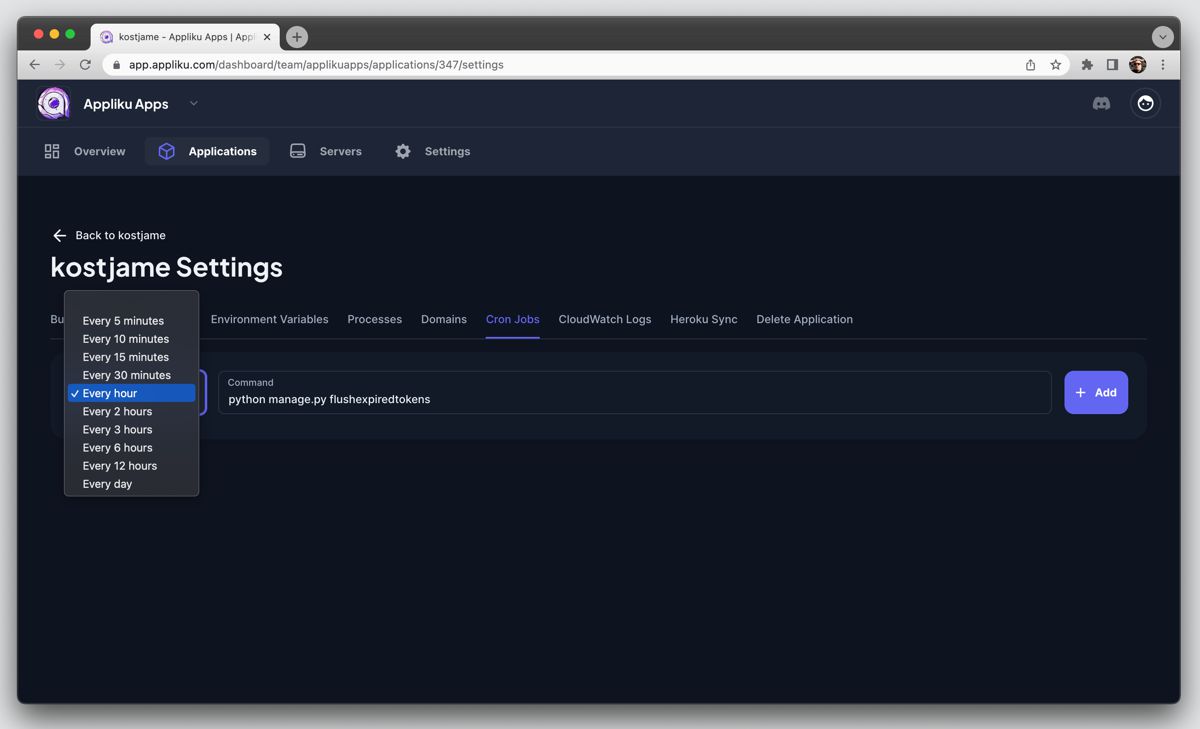
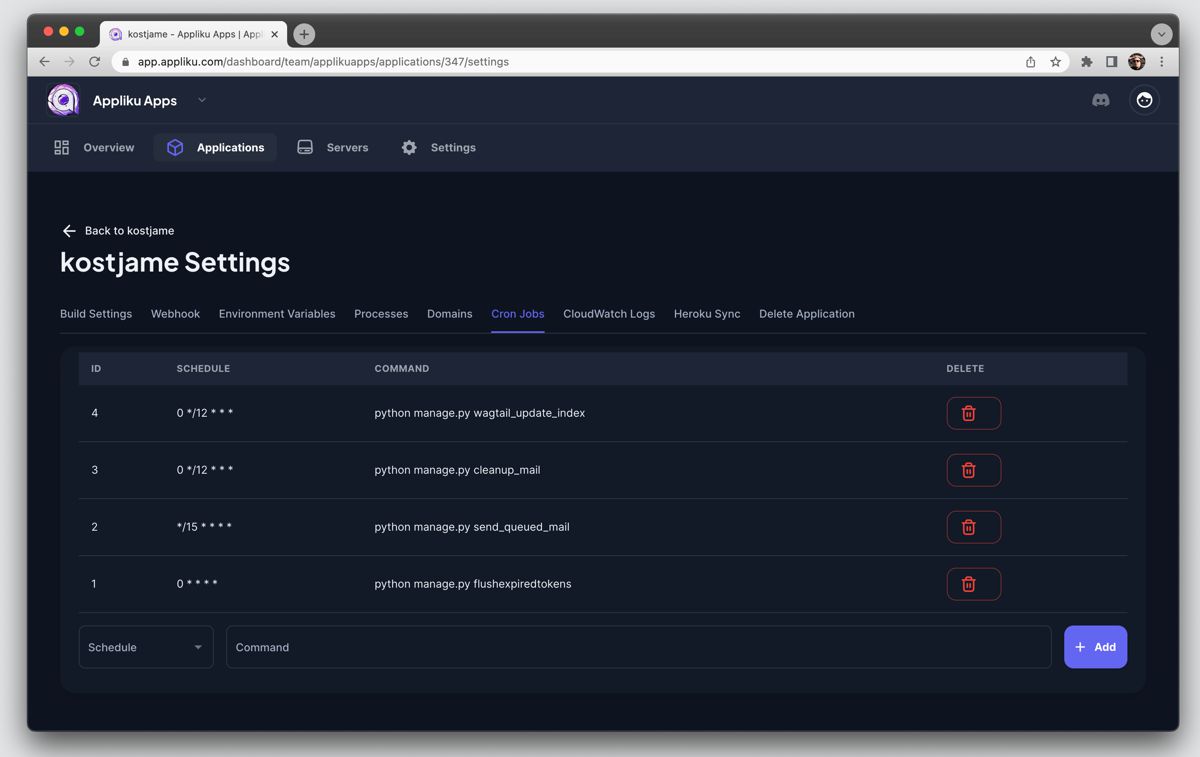
You can add as many jobs as you want.
When Changes Apply
Changes to cron jobs (add, edit, enable, disable, delete) apply right away. No deployment is needed (for an application whose appliku.yml manages the cron jobs, see Cron Jobs Managed by appliku.yml). Appliku updates the crontab on the server (for a cluster application, on the cluster primary) within about a minute.
Each run uses the code and the environment variables of the last successful deployment. To run new code or new environment variables, deploy the application. While a deployment runs, there are exceptions (see The Image of a Run).
Cron Jobs Managed by appliku.yml
If your repository has an appliku.yml file with a cronjobs section (and the application uses the file), that section controls the cron jobs. At each deployment, Appliku makes the cron jobs match the file and deletes the jobs that are not in it. An empty cronjobs section deletes all of them.
For such an application, the Cron Jobs tab shows the jobs, their status, the last run and the run history, but you cannot add, edit or delete a job there. The CLI and the API refuse these changes too. The time limit is also read-only (use the timeout key in the file). To change a job, change the file and deploy the application.
You can still turn a job on or off with the switch in the list (or with appliku crons update --id <job id> --enable / --disable). A deployment keeps this setting for a job that stays in the file.
When a deployment deletes jobs because the file does not have them, the deployment log names them. After you turn on the file with Save and Validate on the YAML Config tab, both tabs warn you which dashboard jobs the next deployment deletes. To keep such a job, add it to the cronjobs section before you deploy.
If the file has no cronjobs key, the tab stays editable and deployments do not change the cron jobs. See appliku.yml cron jobs.
Time Limit
Each cron job has a time limit for one run, in seconds: at least 60, at most 86400 (24 hours). The default is 43200 (12 hours). Set it in the "Time limit" field when you add or edit a job, or with the timeout key in appliku.yml.
Note
The time limit is enforced for cron jobs of cluster applications and on standalone servers with the enforced cron runner. On a standalone server with the old cron runner, the value is saved but a run is not stopped. The "Time limit" field then says "Not enforced yet on this server", with a link to the server settings. See Cron Jobs on a Standalone Server.
Cron Jobs on a Standalone Server
A standalone server uses the new cron runner or the old cron runner:
- New servers start with the new cron runner. The server settings call it the enforced cron runner ("Enforced").
- Existing servers (servers that were added before the new cron runner) continue to use the old cron runner until a team owner or admin switches them (see Switch a Server to the Enforced Cron Runner).
With the new cron runner:
- Each run starts a container from the image of the running deployment (see The Image of a Run).
- One run at a time. If the previous run of the same job still runs, the new run is skipped.
- Time limit. A run that is still running at its time limit is stopped.
- Delete stops the run. When you delete a job, or move the application to another server, a run that is running is stopped.
- Disable lets the run finish. When you disable a job, no new run starts. A run that is running continues to its end (or to its time limit).
- Appliku records each run (see Run Reports), and you can see the run history and the log of each run.
With the old cron runner, the jobs run as before. The time limit is not enforced ("Not enforced yet on this server"), the server does not send run reports, the state of each job is "Reporting not confirmed" and the run history stays empty.
The Image of a Run
With the new cron runner, a run uses the image of the deployment whose containers run on the server:
- During a deployment, runs use the image of the previous deployment while the new image builds. A run does not fail because the new image is not built yet. When the deployment replaces the containers (it stops the old containers and starts the new ones), runs use the new image, also when the release command of that deployment fails later.
- A deployment writes the new environment variables before the build. A run during the build can therefore get the new environment variables with the image of the previous deployment.
- A run that is running when a deployment replaces the containers is stopped. The run history shows it as "Stopped". The old cron runner does the same.
- If the
one_offimage of the running deployment is not on the server (for example, a manualdocker system prune -aremoved it), the run uses the image of a running process of the application from the same deployment (thewebprocess first). The cron log of the job says which image the run uses. - If no image is found (for example, the application was never deployed on this server), the run does not start and is reported as "not started". Deploy the application again.
Switch a Server to the Enforced Cron Runner
A team owner or admin can switch a standalone server from the old cron runner to the enforced cron runner:
- Open the server and go to the Settings tab.
- The Cron runner card shows the current cron runner of the server.
- Click Switch to the enforced cron runner. The dialog shows what changes and the list of the enabled cron jobs of the server, with their schedules and time limits. Check the time limit of each job before you continue.
- Click Switch to the enforced cron runner in the dialog.
Appliku then installs the crontab of the server again with the new cron runner. This takes some seconds. The card shows the result. If the crontab cannot be installed (for example, the server cannot be reached), the server keeps the old cron runner and the card shows the error. You can try again.
At the switch:
- A run of the old cron runner that runs at the time of the switch is not seen by the new cron runner, so one overlap is possible.
- Jobs that need overlapping runs, or that run for more than 24 hours, must be changed first.
The switch is only in one direction. To go back to the old cron runner, contact support. The setup log of the server shows who switched and when.
Servers in a cluster do not have this setting: cron jobs of cluster applications always use the cluster runner. Developers can see the card but cannot switch.
The "Time limit" field of a cron job says "Not enforced yet on this server" while the server has the old cron runner. Its link "Change in server settings" opens the card.
Run Reports
For cluster applications and on standalone servers with the new cron runner, Appliku records each run of a cron job: when it started, when it ended, the result (succeeded, failed, stopped at the time limit, not started), the exit code and the last line of the output (see Last Output Line). The rest of the output is not sent to Appliku; it stays on the server (see Viewing Cron Job Logs).
- The server sends the reports to Appliku over HTTPS (outbound port 443 to the Appliku API). A slow or unavailable connection never delays a job: the reports wait on the server and are sent later.
- If the server cannot reach Appliku over HTTPS, Appliku reads the waiting reports over SSH, every 6 minutes.
- For a cluster application, the cluster primary sends the reports.
Appliku keeps the newest 100 runs of each job, for at most 30 days.
Run History and State
The Cron Jobs tab shows the state and the last run of each job (the start time, the result, the exit code and the duration). Click "History" to see the last 100 runs of a job in the last 30 days. Runs show only for cluster applications and for servers with the new cron runner (see Run Reports).
In the run history, click "Refresh" to read the runs again. The button shows "Refreshing..." while it reads, and "Last checked" shows the time of the last read. If the runs cannot be read, the dialog says "The run history could not be loaded. Try again with Refresh."
When the history has no runs, the dialog tells you why:
- The job is disabled. A disabled job does not run.
- Cron jobs of this application do not run at this time (for example, a static site on a cluster).
- The server uses the old cron runner, which does not record runs. "Open the server settings" opens the Cron runner card.
- The job has not run yet. The dialog shows the time of the next run.
- No run was reported in the last 30 days.
The state of a job is one of these:
| State | Meaning | Red triangle |
|---|---|---|
| Disabled | The job is disabled. | no |
| Not active | Cron jobs of this application do not run (for example, a static site on a cluster). | no |
| Reporting not confirmed | The server does not report runs (it uses the old cron runner). The job runs as before. | no |
| Running | A run is running. | no |
| Lost | The run did not report its end after its time limit plus 10 minutes. | yes |
| Failed, Stopped by the time limit, Did not start, Stopped, Result not known | The result of the last run. | yes |
| Overdue | No run started after the second scheduled time, plus 1 hour. If Appliku never got a report, the text is "No run was reported. Check that the server can reach Appliku over HTTPS." | yes |
| Succeeded | The last run succeeded. | no |
| Waiting for the next run | No run yet since the job was created or changed. | no |
A failure stays visible until a newer run or a change of the job (schedule, command, time limit, or enable).
The application overview page has a "Cron Jobs" card when the application has cron jobs. It shows each job with its schedule, the time of its last run and its state. A red triangle shows the jobs that need attention. "Manage" opens the Cron Jobs tab.
Last Output Line
For each run, the Cron Jobs tab (under the last run) and the run history (in the "Note" column) show the last line of the output that is not empty, for example Sent 25 emails. Point to a long line to see all of it.
- The line has at most 300 characters. Appliku removes terminal colour codes and control characters from it.
- A run that has no run log (for example, it did not start because no image was found) has no line.
- The server sends the line with the end report of the run. A server gets this feature with its next crontab update (a deployment, or a change of a cron job or a backup).
- With an API token, the line shows only when the token can read applications (the same permission as the run log).
The last line is stored in Appliku
Appliku stores the last line of each run with the run (the newest 100 runs of each job, for about 30 days). Backups of the Appliku database can keep it longer. Team members who can see the run history can see it. Do not print secrets (passwords, tokens, keys) as the last line of a cron job.
View the Log of a Run
In the history of a job, click "View log" for a run. Appliku then reads the log of that run from the server over SSH (for a cluster application, from the cluster primary). It never reads logs when a page opens. The dialog shows the last 64 KB of the log; "Load more" shows more, up to 1 MB.
If the server could not collect all of the output of a run, the dialog says that the output may be incomplete.
If the log cannot be shown, the dialog tells you why:
- "The log is written when the run ends." The run is still running.
- "The output of this run could not be collected."
- "This run has no log: it ended before its command started, or a crontab update removed it. The reason is in the run history."
- "This log was removed by the retention (100 runs, 30 days, 50 MB for each job)."
- "The server could not be reached. Try again later."
- "The run was on a server that is no longer available; its log cannot be shown."
- "Another log request for this server is running. Try again in a few seconds."
You can request at most 20 logs in a minute.
Run History in the CLI
appliku crons list   --team my-team --app 42                  # state, last run, time limit
appliku crons runs   --team my-team --app 42 --id 8 --limit 20
appliku crons logs   --team my-team --app 42 --id 8 --run <run key> [--tail 65536]
appliku crons update --team my-team --app 42 --id 8 --timeout 3600
appliku crons update --team my-team --app 42 --id 8 --disable   # or --enable
In crons list, a state that has the red triangle in the dashboard starts with !. crons runs, crons logs and crons update need CLI 0.9.0 or newer.
Appliku Manages the Crontab of the Server
Appliku installs the cron jobs in the crontab of the user app on the server (for a cluster application, on the cluster primary). Each successful deployment of an application, also a restart, installs this crontab again. The deployment log has a step "Updating cron jobs and crontabs" with each cron job of the application (name, schedule, enabled or disabled, time limit and the server). The result comes some seconds later in the same log, for example "Cron jobs and crontab updated on web-1: 3 cron jobs, 1 backup job." The deployment page shows it when it arrives. If the server cannot be reached, the log says so and Appliku tries again. A problem with the crontab never makes the deployment fail.
Lines that you add by hand are removed
Do not edit the crontab of the user app by hand. Appliku replaces the complete crontab at each deployment and at each change of a cron job or a backup. Use Cron Jobs in Appliku instead.
When Appliku finds lines that it did not write, it keeps a copy of the old crontab in /home/app/_cron_drift/ on the server (the newest 10 copies) and the deployment log says how many lines were added or are missing. A server where Appliku never installed a crontab and that has no cron jobs and no backups is not changed.
The crontab of root and of other users, /etc/cron.d and systemd timers are not changed.
If a crontab change could not be installed for more than 24 hours (for example, the server is off), the server page shows "Crontab not updated since
Schedule Rules
The schedule is a standard cron expression with 5 fields (minute, hour, day of month, month, day of week), or one of these macros: @hourly, @daily, @midnight, @weekly, @monthly, @yearly, @annually, @reboot.
In each field, you can use a comma-separated list of these items: *, */n, a value (5), a range (1-5) or a range with a step (0-30/10). Month and weekday names (jan-dec, sun-sat) are accepted.
Appliku refuses schedules that cron cannot use:
- a step after a single value, for example
5/10(use5-59/10) - a range from a high value to a low value, for example
22-2(use22-23,0-2) - 6 fields (seconds), and the special characters
L,?,#andH
The error message is: "Invalid cron expression. Use 5 fields (minute hour day month weekday) or @hourly, @daily, @weekly, @monthly, @yearly, @reboot." Appliku saves the schedule with single spaces between the fields.
The same rules apply to the cronjobs section of appliku.yml. If a job in the file has a schedule that is not valid, the deployment fails with the error in its log.
Note
If a job that you added before these rules existed has a schedule that is not valid, Appliku does not install that job on the server. The other cron jobs of the server still run. Edit the schedule to make the job run again.
How the Command Runs
Each run starts a new container from the image of the application, like a one-off command. The complete command runs inside that container, also when it contains shell characters such as &&, |, >, ;, $ or quotes.
- A plain command, such as
python manage.py send_emails, is passed to the container as its words. - Any other command runs in a shell in the container:
bashif the image has it, else/bin/sh. For example,cd app && python manage.py cleanup > /tmp/cleanup.logruns both commands in the container and writes the file in the container.$NAMEgets the value of the environment variable in the container.
Changed in November 2026
Before this change, the shell of the server read these characters. For example, the part after && or | ran on the server and not in the container, and > file wrote the file on the server. If a job depends on this, change the command. For example, write the output to a volume path, or remove the redirection and read the cron log.
The output of the command goes to the cron log of the job (see below). Because the container is removed after the run, a file that the command writes in the container is lost, unless it is in a volume.
Viewing Cron Job Logs
With the new cron runner, the easiest way to see the output of a run is "View log" in the run history (see View the Log of a Run) or appliku crons logs.
To view logs from your cron jobs on the server, SSH into the server and navigate to the cron logs directory. For a cluster application, use the cluster primary:
Note
On a server with the managed firewall (EC2 or DigitalOcean), allow your IP first (Firewall).
Logs are organized by job ID. Find the file with your job ID to see the output of that specific cron job.
For cluster applications and on standalone servers with the new cron runner, the output of each run is in its own file: /home/app/_cron_logs/runs/job_<job ID>/<run key>.log (the last 1 MB of the output). The file job_<job ID>.log has only the start and end lines of each run, the result (RESULT ..., APPLIKU_CRON_EXIT <code>) and the path of the run log. Appliku keeps the run logs of the newest 100 runs of each job, for at most 30 days, at most 50 MB for each job and 2 GB for each server (the oldest are deleted first).
Tip
If you're not sure which job ID corresponds to which cron job, check the job IDs in the Appliku dashboard on the Cron Jobs tab.