Notifications
Appliku sends notifications for important events such as deployment status changes, server health alerts, and other operational events. Notifications are visible in the Appliku dashboard.
Notification Events
| Event | Description |
|---|---|
| Deployment succeeded | An application deployment completed successfully |
| Deployment failed | A deployment failed during build or release |
| Deployment timeout | A deployment exceeded the maximum allowed time |
| Server RAM alert | Server memory usage exceeds 80% |
| Server disk alert | Server disk usage exceeds 80% |
| Server offline | A server becomes unreachable |
| Server recovered | A previously unreachable server reconnected |
| Server setup complete | A newly added server finished provisioning |
| Cloud credentials invalid | A team's cloud-provider credentials stopped working |
| Git credentials invalid | Your connected GitHub or GitLab credentials stopped working |
Viewing Notifications
Notifications appear in the Appliku dashboard. Check the notification area for recent events related to your team's resources.
How notifications are organized
Appliku separates notifications into two scopes:
- Personal notifications (Account Settings > Notifications) control the channels that reach you directly: email and Telegram. They follow you across every team you belong to, filtered by a team scope you pick.
- Team channel notifications (Team Settings > Notifications) control the shared Slack and Discord webhooks for a team. Only team owners and admins can change them.
Notifications fall into two categories:
- Deployment notifications: deployment succeeded, failed, timed out, or aborted.
- Server notifications: server setup complete, server offline or recovered, disk and RAM alerts, and cloud-provider credential problems.
Personal notifications (Account Settings)
Open Account Settings > Notifications to control your personal channels:
- Email -- turn personal email notifications on or off.
- Telegram -- connect Telegram and turn it on or off (see below).
- Team scope -- choose All teams, Selected teams, or None. The same scope applies to both email and Telegram.
For example you can enable email for all teams, or enable Telegram only for one team, or turn everything off. If you leave a team you stop receiving its notifications even if it was previously selected.
Default behavior for existing users
When this unified model was introduced, existing preferences were preserved:
- If you had not opted out of any team's notifications, email stays enabled for all teams.
- If you had previously been opted out of some teams (an admin can set this), your scope is migrated to Selected teams covering only the teams you were still receiving notifications for, so you are never re-subscribed to a team you had been removed from.
- If you were opted out of every team, personal email is disabled.
- If you had connected Telegram and it was not set to None, it stays enabled. (A connection that was set to None stays off.) Any earlier per-team Telegram selection is replaced by the unified team scope above.
New accounts default to: email on, Telegram off (until connected), all teams.
Team channel notifications (Team Settings)
Team owners and admins configure shared Slack and Discord webhooks in Team Settings > Notifications. Each channel has per-category toggles:
- Send deployment notifications to Slack / Discord
- Send server notifications to Slack / Discord
Deployment notifications to Slack and Discord are on by default when a webhook is set, preserving existing behavior. Server notifications to Slack and Discord are off by default to avoid unexpected noise; enable them per channel when you want them.
RAM and disk alert toggles remain on the team and gate whether those alerts fire at all. A RAM or disk alert reaches a channel only when both the relevant alert toggle and that channel's server-notifications toggle are enabled.
Server Health Alerts
Appliku monitors your servers and sends alerts when resource usage exceeds safe thresholds:
- RAM usage above 80% -- Indicates the server may be running low on memory. Consider upgrading the server or reducing the number of running containers.
Tip
If you receive frequent RAM alerts, review your running processes and databases. Each container consumes memory. Common solutions include upgrading to a larger server, reducing process scale, or moving databases to a dedicated server.
Deployment Notifications
Deployment notifications help you stay informed about the status of your releases:
- Succeeded -- The new version is live
- Failed -- Check the build logs in the Deployments tab for error details
- Timeout -- The build or release phase took too long. Review your build process for bottlenecks.
Git Credential Checks
Appliku periodically checks the GitHub and GitLab credentials connected to your account so you find out that a token stopped working before a deployment or repository action fails. GitHub and GitLab are checked independently.
When a previously working token stops authenticating (for example it was revoked or expired), Appliku sends you a personal notification once, through your enabled personal channels (email and, if connected, Telegram). It does not keep emailing you while the problem remains, and it does not send a confirmation message when you reconnect: updating the credentials is enough.
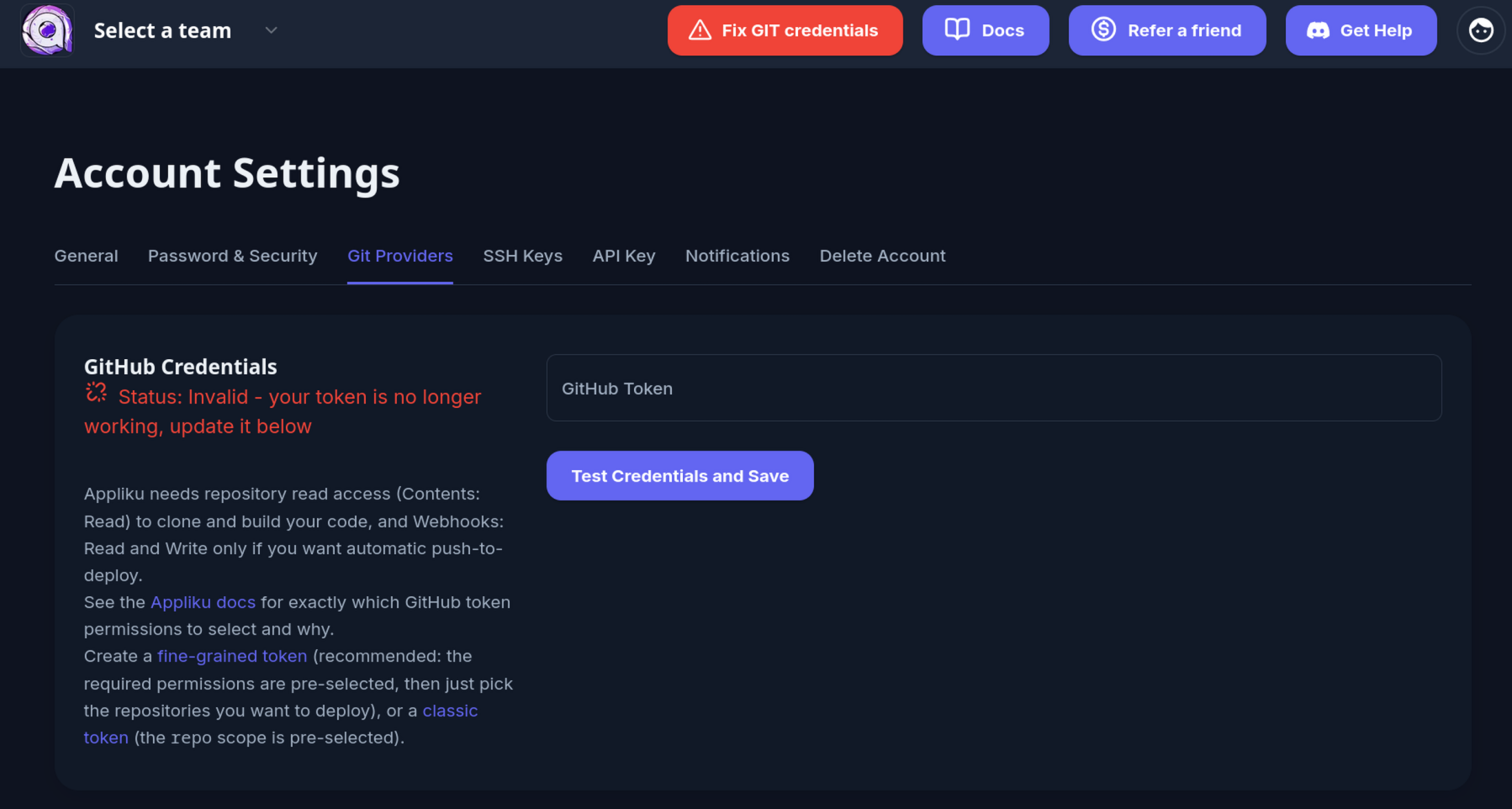
While either GitHub or GitLab credentials are invalid, a red Fix GIT credentials button appears next to the user menu at the top of the dashboard. Clicking it takes you to Account Settings > Git Providers, where the affected provider is marked as invalid. Save a working token there to clear the warning. Empty (never-connected) providers are not checked and never raise this warning.
Telegram Notifications
You can receive notifications directly in Telegram. This is a personal setting that lives in your account, not in team settings, so it follows you across every team you belong to, filtered by the team scope above. Telegram covers both deployment and server notifications.
Connecting Telegram
You can open this setup from Account Settings > Notifications. Application overview pages may also show a dismissible Get deployment notifications in Telegram banner that links to the same account settings tab.
- Open Account Settings and go to the Notifications tab.
- Click Open Telegram bot and send
/startto the Appliku bot. - The bot replies with a link back to your Appliku dashboard. Open it while logged in.
- The dashboard shows the Telegram account that will be connected. Confirm only if it is your own Telegram account, then click Confirm.
- The bot sends a confirmation number to your Telegram chat. Select that number in the dashboard to finish connecting.
This two-step confirmation (confirm in the dashboard, then select the number that was
sent to your Telegram chat) ensures only you can connect your own Telegram chat to your
account: completing it requires access to both your logged-in dashboard and the Telegram
chat. If you pick the wrong number the attempt is cancelled for security and you start
again with /start.
Choosing which teams to notify
The team scope at the top of the Notifications tab applies to all your personal channels (both email and Telegram):
- All teams -- receive notifications for every team you are a member of.
- Selected teams -- choose specific teams from the list.
- None -- stay connected but receive no notifications.
Disconnecting
Click Disconnect in the Notifications tab to remove the link. You will immediately stop receiving notifications in Telegram. Your email preference is unaffected.
Next Steps
- Teams Overview -- How teams work
- Account Settings -- Personal notification preferences